Blackboard Print
Convert Blackboard Ultra quizzes to clean, printer-friendly PDFs. Perfect for studying, archiving, or offline review.
Convert Blackboard Ultra quizzes to clean, printer-friendly PDFs. Perfect for studying, archiving, or offline review.
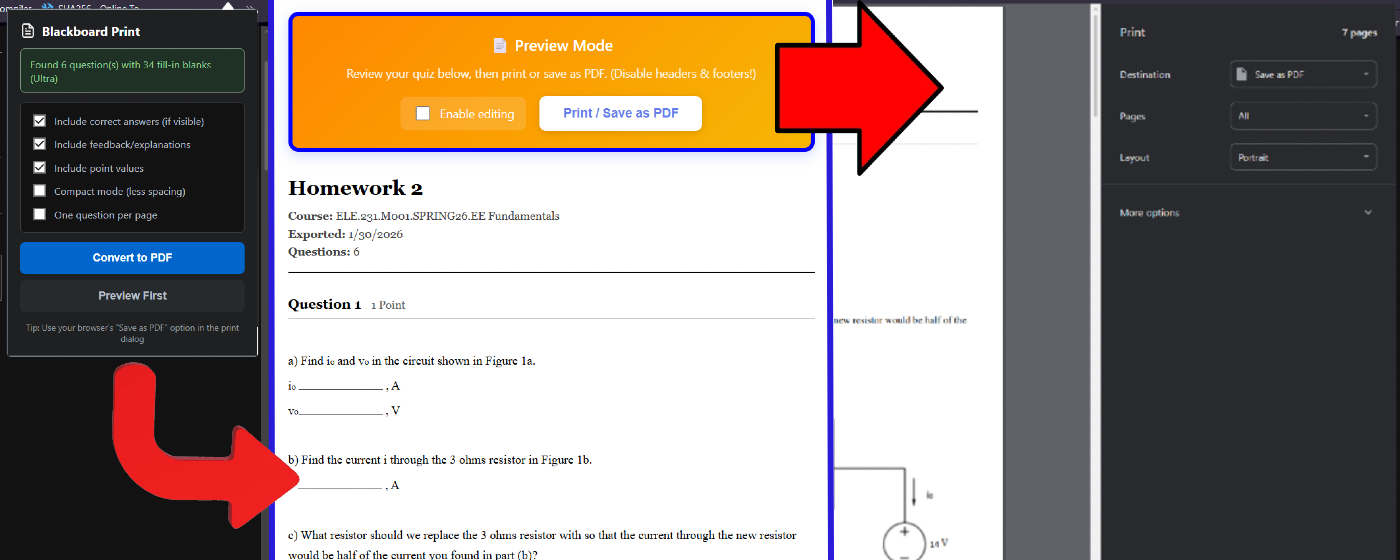
Designed specifically for Syracuse University's Blackboard Ultra, but may work with other institutions too.
Strips away Blackboard's cluttered interface to produce clean, print-ready documents.
Diagrams, figures, and embedded images are automatically extracted and included in your PDF.
Answer fields are converted to clean underlines, making it easy to practice or use as a study worksheet.
Options for compact mode, one question per page, edit mode for corrections, etc.
From messy Blackboard pages to clean, printable documents in the blink of an eye.
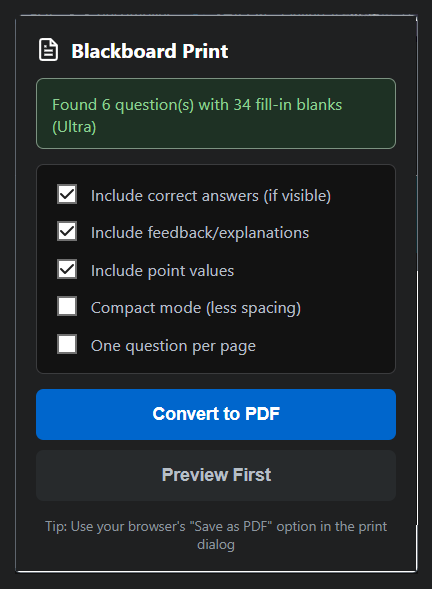
Click the extension icon on any Blackboard quiz page. It automatically detects questions and shows you exactly what it found.
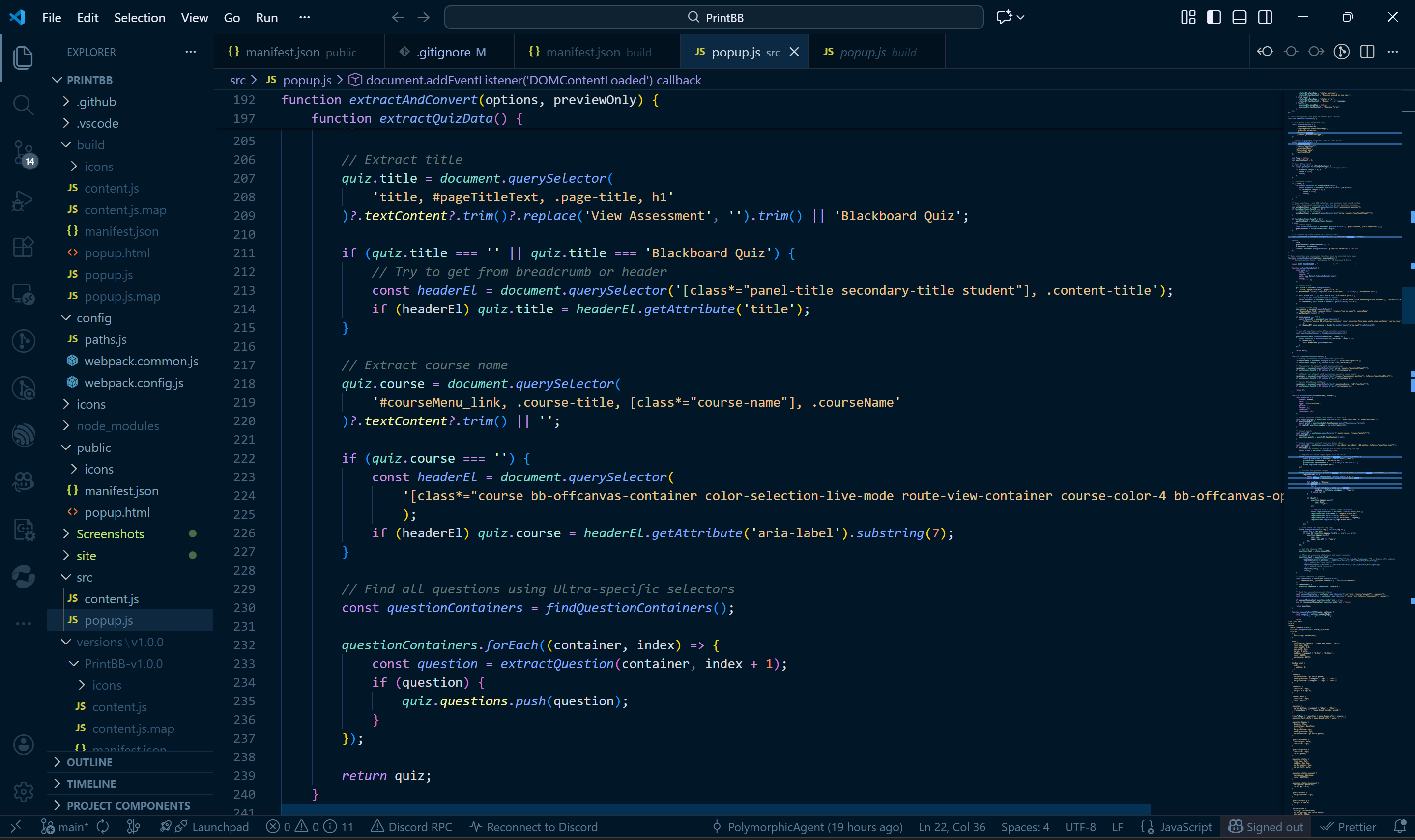
Automatically identifies fill-in-the-blank questions, multiple choice, images, and point values from Blackboard Ultra's complex HTML structure.
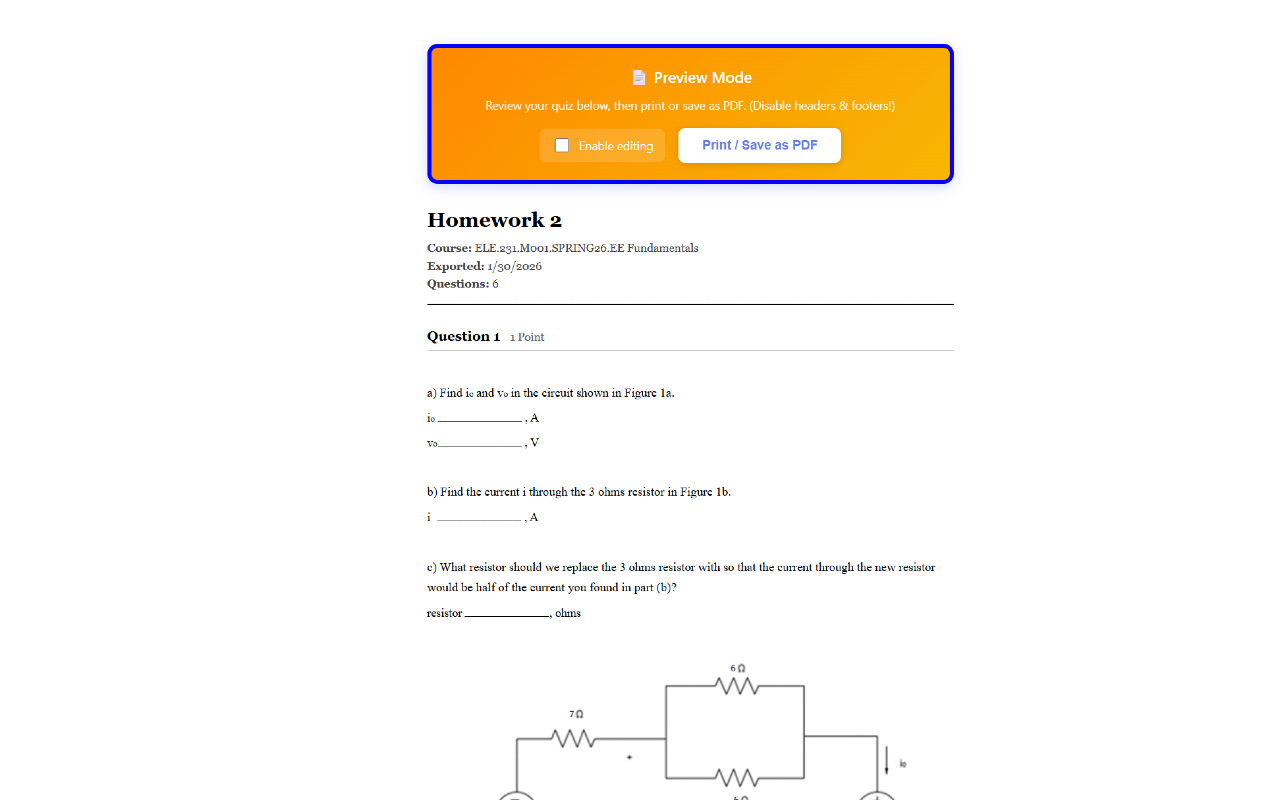
See exactly how your PDF will look before printing. Make edits, toggle options, whatever.
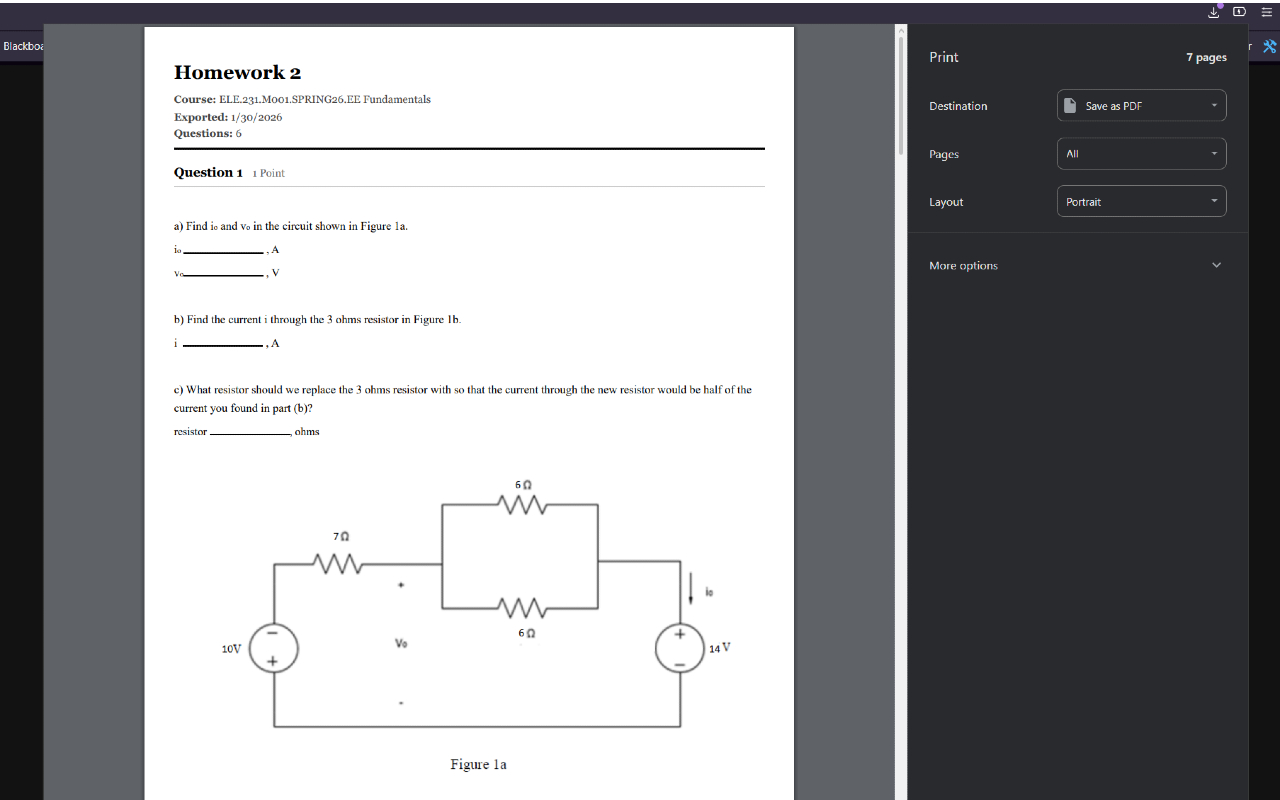
Clean typography, proper spacing, and intelligent page breaks create official-looking documents.
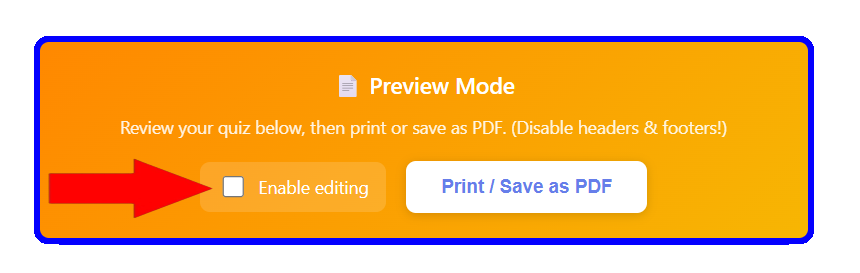
Enable editing to make last-minute corrections or add notes before printing—all without leaving the preview.
Four simple steps to better quiz documents.
Add Blackboard Print to Chrome from the Chrome Web Store. No account or setup required.
Open any Blackboard Ultra quiz, and start a new attempt.
Click the extension icon, choose your options (compact mode, one per page, etc.), and hit Preview.
Use your browser's print dialog to save as PDF or send directly to your printer.